
Best HEIC Viewer for Windows: Complete Guide to Opening Apple Photos
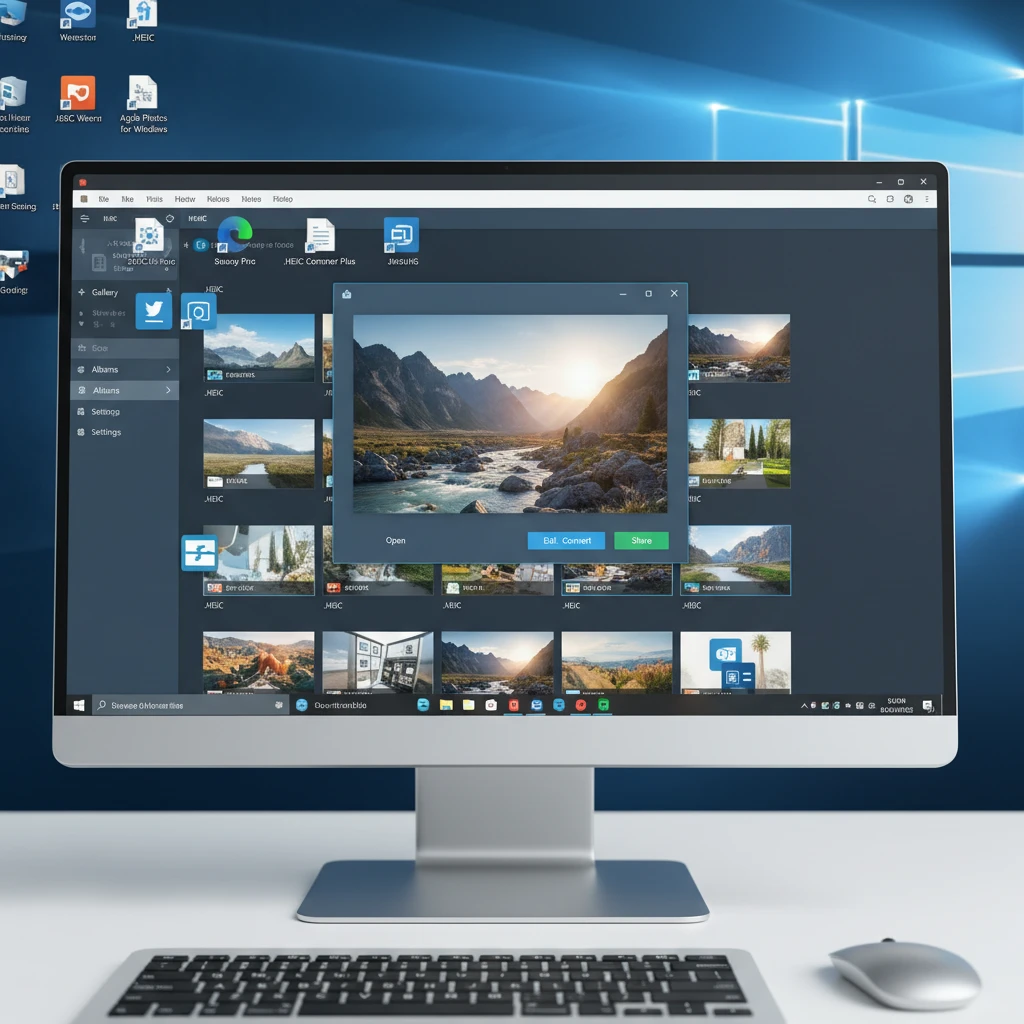
You’ve just received some stunning photos from a friend’s iPhone, but when you try to open them on your Windows computer, you’re met with an error message or a blank screen. Those files have a “.heic” extension, and your PC has no idea what to do with them. Don’t worry – you’re not alone in this frustration.
HEIC (High Efficiency Image Container) is Apple’s modern image format that creates smaller file sizes while maintaining excellent quality. However, Windows doesn’t natively support HEIC files in most versions, leaving millions of users scratching their heads when they encounter these mystery files.
The good news? There are several reliable ways to view HEIC files on Windows, from built-in Microsoft solutions to third-party applications and online converters. Let’s explore your options and find the **best HEIC viewer for Windows** that fits your specific needs.
Quick Summary: Your HEIC Viewing Options
- Enable native Windows support through Microsoft Store codec extensions
- Use third-party viewer applications for enhanced features and broader format support
- Convert HEIC files to JPEG using online tools for one-time viewing needs
- Configure Windows Photos app to handle HEIC files automatically
- Consider batch conversion tools if you regularly receive Apple photos
What Is HEIC and Why Windows Struggles With It
HEIC stands for High Efficiency Image Container, part of the HEIF (High Efficiency Image Format) standard developed by the Moving Picture Experts Group. Apple adopted this format starting with iOS 11 in 2017 because it offers significant advantages over traditional JPEG files.
The format uses advanced compression algorithms that can reduce file sizes by up to 50% compared to JPEG while maintaining the same visual quality. This means iPhone users can store twice as many photos in the same amount of storage space – a compelling benefit for devices with limited capacity.
However, **Windows doesn’t include HEIC support by default** because Microsoft would need to pay licensing fees to the patent holders. This creates a compatibility gap that affects millions of users who share photos between Apple and Windows devices.
Technical Specifications That Matter
HEIC files use the HEVC (H.265) video codec for compression, which requires specific hardware or software decoders. The format supports:
- 16-bit color depth (versus JPEG’s 8-bit)
- Multiple images in a single container (like Live Photos)
- Transparency and animation support
- Better compression ratios than JPEG, PNG, or GIF
Native Windows Solutions for HEIC Files
Microsoft offers official codec support for HEIC files, though it’s not installed by default. Here’s how to enable native support in Windows 10 and 11.
Installing Microsoft’s HEIF Image Extensions
The most straightforward approach involves downloading two free extensions from the Microsoft Store:
- Open the Microsoft Store application on your Windows computer
- Search for “HEIF Image Extensions” and install the free extension
- Search for “HEVC Video Extensions” (note: this may require a small fee)
- Restart your computer to activate the codecs
- Double-click any HEIC file to open it in the Windows Photos app
After installation, HEIC files will open seamlessly in Windows Photos, File Explorer thumbnails, and most Windows applications that handle images. This solution works best if you occasionally receive HEIC files and want a “set it and forget it” approach.
Limitations of the Native Approach
While Microsoft’s codec extensions solve the basic compatibility issue, they have some drawbacks:
- The HEVC extension often costs $0.99 (though OEM versions may be free)
- Limited editing capabilities compared to specialized image software
- No batch conversion features for multiple files
- Slower performance with large HEIC collections
Third-Party HEIC Viewer Applications
Dedicated HEIC viewer applications often provide superior features, faster performance, and additional format support compared to Windows’ built-in solutions.
Key Features to Look For
When evaluating third-party HEIC viewers, prioritize applications that offer:
- Fast loading times for large image collections
- Batch conversion capabilities (HEIC to JPEG/PNG)
- Support for HEIC metadata and EXIF data preservation
- Integration with Windows File Explorer
- Additional format support (RAW, WebP, AVIF)
| Feature | Native Windows | Third-Party Viewers | Online Converters |
|---|---|---|---|
| Setup Complexity | Medium | Low | None |
| Batch Processing | No | Yes | Limited |
| Offline Usage | Yes | Yes | No |
| Format Support | Basic | Extensive | Variable |
| Privacy | High | High | Lower |
Installation and Configuration Tips
Most third-party viewers follow a similar setup process:
- Download the installer from the developer’s official website
- Run the installer with administrator privileges
- Allow the application to associate with HEIC file extensions
- Configure default settings for image quality and conversion preferences
- Test with a sample HEIC file to ensure proper functionality
**Pro tip**: Many applications offer portable versions that don’t require installation, perfect for workplace computers with restricted software policies.
Online HEIC Converters: Quick Solutions
For occasional HEIC viewing needs, online conversion tools provide the fastest path from Apple’s format to universally compatible JPEG files.
How Online Conversion Works
Web-based converters typically follow this process:
- Upload your HEIC files through a web interface
- The service converts files to JPEG, PNG, or other formats on remote servers
- Download the converted images to your computer
- Delete the original HEIC files if storage space is a concern
This approach works well for small batches of photos, especially when you need a quick solution without installing new software.
Privacy and Security Considerations
Before uploading personal photos to online services, consider these factors:
- Look for services that promise automatic file deletion after conversion
- Check if the website uses HTTPS encryption for file uploads
- Read privacy policies to understand data handling practices
- Avoid uploading sensitive or private images to unknown services
Some online converters process files locally in your browser using JavaScript, which offers better privacy protection than server-based conversion.
Step-by-Step Viewing Instructions
Let’s walk through the complete process of opening HEIC files using each major approach.
Method 1: Using Windows Native Support
- Press Windows key + R to open the Run dialog
- Type “ms-windows-store://search/?query=HEIF” and press Enter
- Install both HEIF Image Extensions and HEVC Video Extensions
- Navigate to your HEIC files in File Explorer
- Double-click any HEIC file – it should open in Windows Photos
Method 2: Third-Party Application Setup
- Research and download a reputable HEIC viewer application
- Right-click the installer and select “Run as administrator”
- Follow installation prompts, ensuring file association options are enabled
- Open the application and use File > Open to browse for HEIC images
- Configure preferences for default conversion formats if needed
Method 3: Online Conversion Process
- Open your preferred web browser and navigate to a trusted conversion service
- Click “Choose Files” or drag HEIC images into the upload area
- Select your desired output format (usually JPEG for compatibility)
- Wait for conversion to complete, then download the results
- Open converted files using any standard image viewer
Troubleshooting Common Issues
Even with proper setup, you might encounter problems when working with HEIC files. Here are solutions to the most frequent issues.
“File Format Not Supported” Errors
This error usually indicates missing codecs or incomplete installation:
- Verify that both HEIF and HEVC extensions are installed from Microsoft Store
- Restart Windows to ensure codecs are properly registered
- Check Windows Update for any pending system updates
- Try opening the file in a different application to isolate the problem
Slow Performance with Large Collections
HEIC files can strain older hardware due to their computational requirements:
- Close unnecessary applications to free up system resources
- Consider converting frequently accessed HEIC files to JPEG permanently
- Use lightweight third-party viewers optimized for performance
- Enable hardware acceleration in supported applications
Quality Loss During Conversion
Some users notice reduced image quality after converting HEIC to JPEG:
- Increase JPEG quality settings to 90% or higher during conversion
- Use PNG format for images with text or sharp edges
- Keep original HEIC files as backups when possible
- Test different conversion tools to find one that preserves quality better
Choosing the Right Solution for Your Needs
The **best HEIC viewer for Windows** depends on your specific usage patterns and requirements.
For Occasional Users
If you rarely encounter HEIC files, online converters offer the simplest solution. No software installation is required, and you can convert files as needed without cluttering your system.
For Regular Apple Photo Recipients
Installing Microsoft’s codec extensions provides seamless integration with Windows. Once set up, HEIC files behave like any other image format throughout the operating system.
For Power Users and Professionals
Third-party applications shine when you need advanced features like batch processing, metadata preservation, or support for multiple specialized image formats. These tools often include additional capabilities like basic editing, organizational features, and optimized performance.
Frequently Asked Questions
Can I convert HEIC to JPEG without losing quality?
Yes, but some quality loss is inevitable when converting between different compression formats. Use high-quality settings (90% or above) and consider PNG for images where quality is critical.
Why don’t HEIC files show thumbnails in Windows Explorer?
Thumbnails require proper codec installation. Install Microsoft’s HEIF Image Extensions from the Store, restart Windows, and thumbnails should appear for HEIC files.
Is it safe to upload HEIC files to online converters?
Choose reputable services that use HTTPS encryption and promise file deletion after conversion. Avoid uploading sensitive photos to unknown websites.
Do HEIC files take up less space than JPEG?
Generally yes – HEIC files are typically 40-50% smaller than equivalent JPEG files while maintaining similar visual quality, thanks to more efficient compression algorithms.
Can I edit HEIC files directly on Windows?
Most Windows photo editors don’t natively support HEIC editing. Install codec extensions first, or convert to JPEG/PNG before editing in your preferred application.
Making Your Decision
The landscape of HEIC support on Windows has improved significantly, giving you multiple viable options for handling Apple’s modern image format. Your choice should align with how frequently you encounter these files and what features matter most to your workflow.
For most users, Microsoft’s official codec extensions provide the best balance of convenience and functionality. They integrate seamlessly with existing Windows applications and require minimal ongoing maintenance. However, if you regularly work with large collections of HEIC files or need advanced conversion features, investing in a dedicated third-party application will likely save time and provide better results.
Remember that the digital photography landscape continues evolving, with new formats and compression technologies emerging regularly. Staying flexible and keeping your chosen solution updated ensures you’ll be ready for whatever image formats the future brings to your Windows desktop.