
How to Open HEIC Files on Windows: Complete Guide for 2024
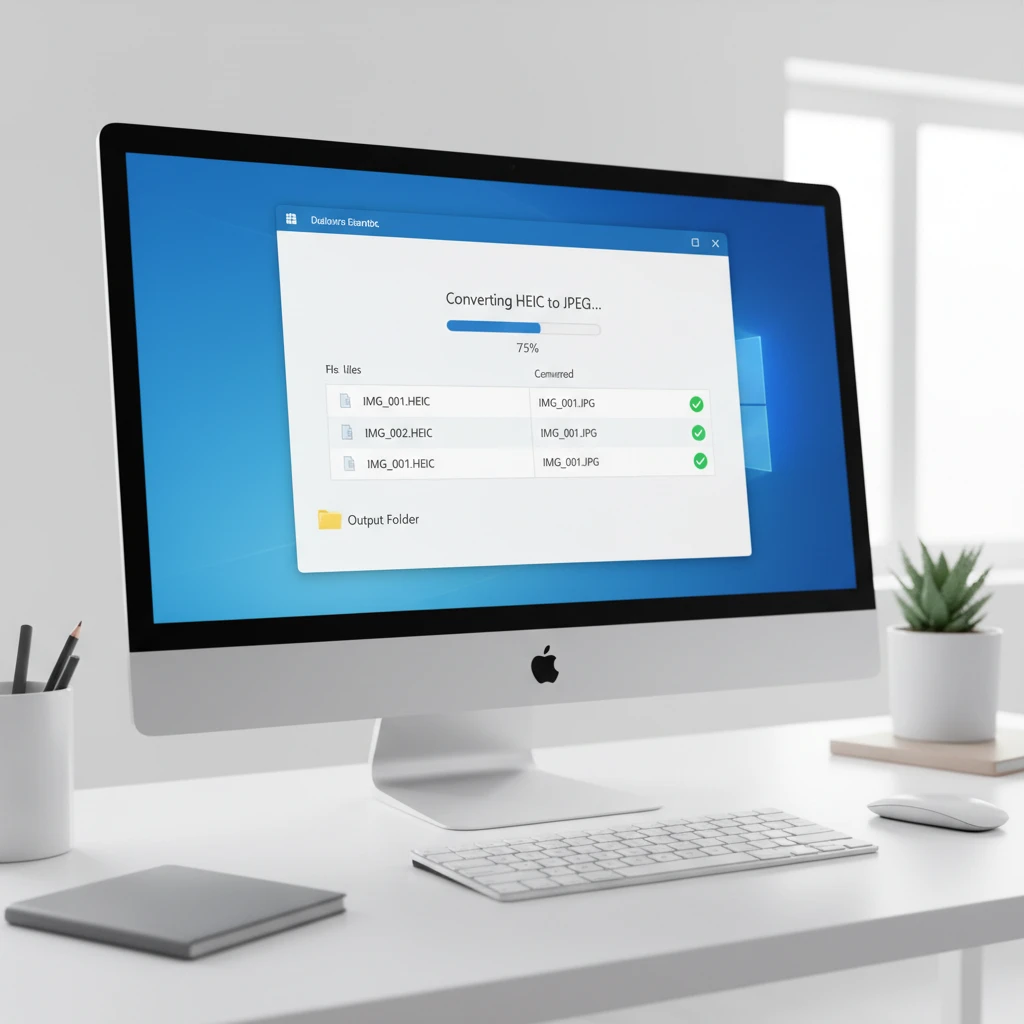
HEIC (High Efficiency Image Container) files are Apple’s modern image format that offers better compression than JPEG while maintaining superior image quality. However, Windows doesn’t natively support HEIC files, leaving many users unable to view photos taken on their iPhones or iPads. This comprehensive guide will show you multiple ways to open HEIC files on Windows computers.
What Are HEIC Files?
HEIC files are image containers that use HEVC (High Efficiency Video Codec) compression technology. Apple introduced this format with iOS 11 to reduce storage space while preserving image quality. A typical HEIC file is about 50% smaller than an equivalent JPEG file, making it ideal for devices with limited storage capacity.
The main benefits of HEIC format include:
- Superior compression efficiency compared to JPEG
- Support for multiple images in a single file
- Better color accuracy and dynamic range
- Smaller file sizes without quality loss
Method 1: Install HEIF Image Extensions from Microsoft Store
The easiest way to open HEIC files on Windows 10 and 11 is by installing Microsoft’s official HEIF Image Extensions. This free codec pack enables native HEIC support in Windows Photos app and File Explorer.
Follow these steps:
- Open Microsoft Store on your Windows computer
- Search for “HEIF Image Extensions”
- Click “Install” to download the extension
- Restart your computer after installation
- Double-click any HEIC file to open it in Windows Photos
Note that you may also need to install “HEVC Video Extensions” for complete compatibility, which costs $0.99 in the Microsoft Store.
Method 2: Convert HEIC Files to JPEG
Converting HEIC files to JPEG format ensures universal compatibility across all devices and platforms. Here are several conversion options:
Online HEIC Converters
Several free online tools can convert HEIC files without software installation:
- iMazing HEIC Converter – Free online tool with batch conversion
- Convertio – Supports multiple file formats including HEIC to JPEG
- CloudConvert – Professional online converter with API access
Simply upload your HEIC files, select JPEG as the output format, and download the converted images.
Desktop Conversion Software
For regular HEIC file handling, consider installing dedicated conversion software:
iMazing HEIC Converter (Free) – A lightweight desktop application that converts HEIC files to JPEG or PNG with a simple drag-and-drop interface.
CopyTrans HEIC (Free) – Integrates with Windows Explorer, allowing you to right-click HEIC files and convert them instantly.
Method 3: Use Third-Party Image Viewers
Several third-party image viewing applications support HEIC files natively:
IrfanView
IrfanView is a popular free image viewer that supports HEIC files with the appropriate plugin:
- Download and install IrfanView
- Install the HEIC plugin from the IrfanView website
- Open HEIC files directly in IrfanView
XnView MP
XnView MP is another free image viewer with built-in HEIC support. It offers advanced features like batch conversion, metadata editing, and slideshow creation.
Method 4: Configure iPhone Settings to Avoid HEIC
To prevent future HEIC compatibility issues, you can change your iPhone camera settings to save photos as JPEG:
- Open Settings on your iPhone
- Navigate to Camera > Formats
- Select “Most Compatible” instead of “High Efficiency”
This setting will make your iPhone save photos as JPEG files, which are compatible with all devices and platforms.
Troubleshooting Common Issues
HEIC Files Won’t Open After Installing Extensions
If HEIC files still won’t open after installing Microsoft’s extensions:
- Ensure you’ve installed both HEIF Image Extensions and HEVC Video Extensions
- Restart your computer completely
- Try opening the file with Windows Photos app specifically
- Check Windows Update for any pending system updates
Poor Image Quality After Conversion
If converted images appear pixelated or compressed:
- Use higher quality settings in your conversion tool
- Try PNG format instead of JPEG for lossless conversion
- Ensure the original HEIC file isn’t corrupted
Best Practices for Handling HEIC Files
To optimize your HEIC file workflow on Windows:
- Install official Microsoft extensions for seamless integration
- Keep backup copies before converting files
- Use batch conversion tools for multiple files
- Consider changing iPhone settings if compatibility is frequently needed
- Regularly update Windows and installed extensions
Conclusion
Opening HEIC files on Windows is straightforward once you understand the available options. Installing Microsoft’s HEIF Image Extensions provides the most seamless experience, while conversion tools offer universal compatibility. Choose the method that best fits your workflow and frequency of HEIC file handling. With these solutions, you’ll never struggle to view iPhone photos on your Windows computer again.